

The iOS operating system, which runs on Apple’s iPhone and iPad devices, contains global positioning satellite (GPS) functionality to allow applications and services to identify your current geographic location. This can be incredibly helpful when using a map application or when looking for localized information like weather reports. When your current GPS location is being retrieved, an arrow icon will appear in the top menu bar of your device.
However, you may want to consider restricting your location data in certain situations. The iOS operating systems allows users to configure different privacy settings and control which applications have access to location information. Follow these steps to get started.
Step 1: Launch the “Settings” application from your iPhone or iPad’s main homescreen. This application is designated by the gear icon.
Step 2: Tap on the row labeled “Privacy” from the list of setting categories.
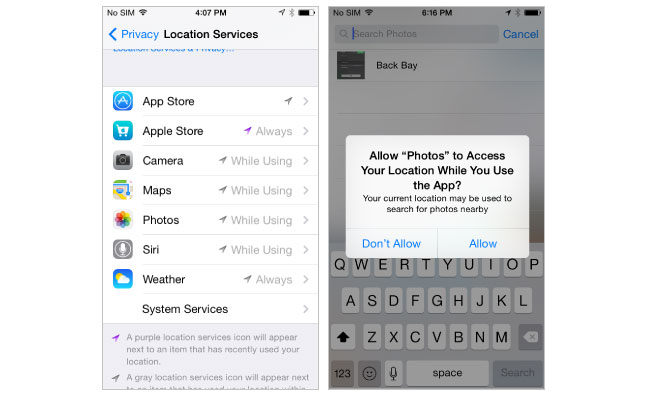
Step 3: Tap on “Location Services” to view your current privacy configuration. The window that appears will list every application installed on your device and what level of access each one has to your GPS data.
Step 4: Use the “Location Services” slider at the top of the window to enable GPS data or disable it entirely. If you move the slider to the gray “Off” position, then no application, including map tools, will be able to access your current location.
Step 5: Tap on the “Share My Location” button if you want to temporarily transfer your GPS data to a friend or contact. This can be helpful if you are attempting to meet someone else for an appointment and want to provide your exact location.
Step 6: Tap on the name of an application to set a custom privacy policy for that item. Each application has three levels of available security: “Always”, “While Using the App”, and “Never.” The “Always” setting gives the application full access to your GPS data at any time. The “While Using the App” option restricts the sharing of location data to only when you have the specific application open on your device. Lastly, the “Never” option will block the application from ever accessing your GPS information.
Additional information regarding the privacy and location settings in iOS can be found on Apple’s support website.