

When working in the Word 2016 program, which is part of the Microsoft Office suite, users have the ability to export their word processing documents in the PDF format. PDF files can be easily shared and opened in any tool that supports Adobe documents. In addition, Word includes a range of exporting options, including the ability to encrypt the document while generating a PDF. The creator of the PDF gets to set a custom password, which then must be entered in order to open the PDF in a different program.
Step 1:
Launch the Word 2016 application from the Start menu of your PC.
Step 2:
Open an existing Word document or click on a template to create a new one.
Step 3:
Go to the “File” menu when you are ready to generate a PDF version of the Word document.
Step 4:
Click on the “Export” option from the list of actions and ensure the “PDF/XPS” block is highlighted.
Step 5:
Click the “Create PDF/XPS Document” button to open the window for selecting export settings.
Step 6:
Navigate to the area of your local hard drive or external drive where you want to store the encrypted PDF file.
Step 7:
Click the “Options” button at the bottom of the window to view the advanced export settings.
Step 8:
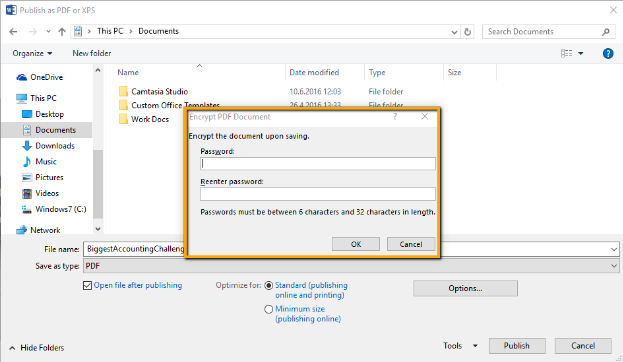
Check the box next to “Encrypt this document with a password” and then click the “OK” button. A new pop-up window will appear and prompt you to set the encryption password.
Step 9:
Choose a custom password for the encrypted document and enter it twice in the pop-up window. The selected password must be between 6 and 32 characters in length.
Step 10:
Click the “Publish” button to begin converting the Word document into a PDF file. Once the export process has finished, you will be able to open the encrypted PDF in Adobe programs using the custom password you set.
For more information on exporting PDFs from Word 2016, consult the Microsoft support website.