
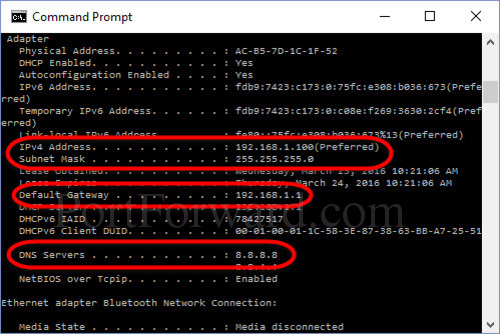

Some computer users may find the need to use a static IP address on their PC. A static IP address is one that does not change dynamically and can be necessary if you often connect to secure servers or other networked hardware. In the Windows 10 operating system, you can set a manual IP address through the TCP/IP settings panel.
Step 1: Log in to your PC with an account that has administrative privileges. Standard accounts may not have permission to set a static IP address.
Step 2: Open the Start menu in the lower-left corner of the screen and click the gear icon to launch the “Settings” window.
Step 3: Go to the “Network & Internet” section and click on the “Change adapter options” button.
Step 4: Right-click on the name of the network adapter you are currently using and choose “Properties” from the pop-up menu. For most users, the most common network adapter will either be “Ethernet” or “Wi-Fi.” If you want to set the same static IP address for both network adapters, you will need to follow the remaining steps for each one.
Step 5: Go to the “Networking” tab at the top of the pop-up window.
Step 6: Highlight the row labeled “Internet Protocol Version 4 (TCP/IPv4)” and click “Properties.”
Step 7: Select the radio button labeled “Use the following IP address.”
Step 8: Enter the four parts of your static IP address in the appropriate text boxes. You may also choose to set a custom subnet mask or default gateway address here.
Step 9: Click “OK” to save the settings and enable the static IP address on the selected network adapter.
Consult the Windows support website for more information on the options available in the TCP/IP settings panel of Windows 10.
Watch the tutorial here.