


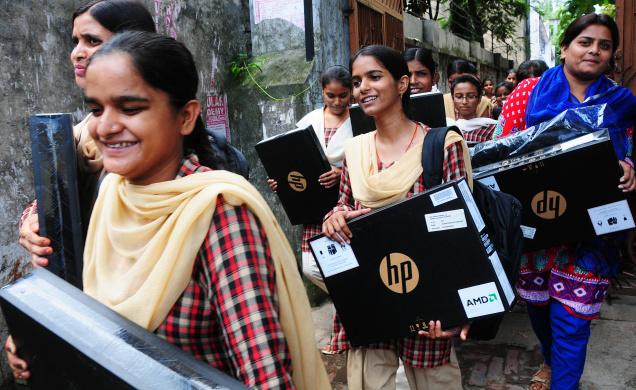
Are you an engineering or arts & science student of Tamil Nadu Government and Govt. aided Colleges? If Yes! you are lucky to get a free Laptop at your Pre-final year or Final Year. Luckily I have also got one free TN government Laptop (Lenovo brand). It might come in HP, HCL, Lenovo and recently they started providing Hasee (China made laptops). Anyhow, getting a free laptop is awesome right! As it is a part of current Government party’s new marketing strategy, they made chief minister’s image on all over the laptop screen, over the lid, on laptop bag and so on.
Also, the most awkward thing is you won’t be having WiFi or Bluetooth on your Government laptops. So, here I offer free tips to disable boot image while booting your Laptop. And, finding best Marketplace for WiFi Adapters/Dongles and Bluetooth Devices.
How to Disable Boot Logo/Image on Government Laptops [HP, HCL, Lenovo and Hasee]
While switching on your Government Laptop, probably the most annoying thing we could find is our Chief minister’s image with Tamil Nadu Government emblem. It creates a cheap imitation on our laptop, that too while using them on public places.
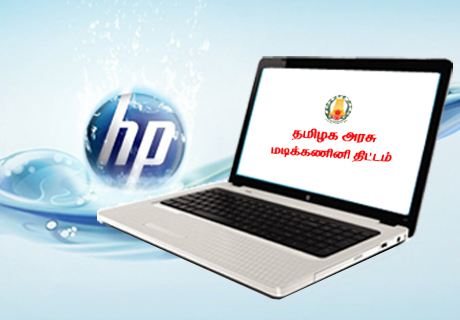
The most frequent query related to Government laptops is just, “how to remove government logo from HP, HCL laptop? or Lenovo/Hasee. So,here I found a solution to remove this Boot Image (BIOS Splash screen) loading in BIOS. So, its time to peek into your system BIOS settings. So, once you switch on Power Button, and click F2 to get into BIOS setup. This F2 key for BIOS setup may alter for Chinese laptops. If it is so, mention me via our commenting system below. Okay! now you will be in your system BIOS. There you click on Boot tab on the Top Menu section to open Boot configuration. You will look like this:

Here you can see Fast Boot [Disabled]. Click on it and choose Enable. Then it’s over, just tap Esc key on your keyboard to save and exit your BIOS screen. Now, Restart your Laptop you can’t see the old BIOS Boot image and booted directly to your OS. It will also speed-up your system Booting speed. Enjoy! This technique is same for all Government Laptops.
Best Wi-Fi Adapters/Dongles for Govt. Laptops:
Tamil Nadu Government Laptops comes with no WiFi and Bluetooth, but you can buy separate WiFi adapter or dongle and attach to your PC via USB port.
Here you can find of the best wireless/WiFi USB adapters for best price in Flipkart.


Comments are closed.
-
-
-
-
-
-
-
-
-
-
-
-
-
-
-
-
-
Show CommentsBro I have HCl government laptop.it doesn’t have wifi but i have huawei dongle.how to connect WiFi?
Please share your Huawei dongle model no. !!
Pls tell bro
I am BE mechanical student of 3rd year. Is any possibilities to get free laptop?
bro, I bought HP two yrs before I can’t activate MS WORD IT IS ASKING
PRODUCT KEY
BUT I DONT AVAILABLE
I RECEIVED ONLY LAPTOP WITHOUT ANY COVER SO I CANNOT HAVE ANY PRODUCT KEY
HOW CAN I GET?
Hi frndz… I’m using govt labtop lenovo E4325 AMD A4-4300M APU. And I’m using samsung galaxy grand gti9082 mobile. I try to connect data from my mobile to labtop, that not connected. Always err msg on “your cable is not supported” I changed many cables but that driver not supported that mobile…
…
Plz give some instructions to connect it.
What can I do for that…?
Ph: 9788998075
Connect your mobile to pc.
Switch on your mobile internet
On your mobile open
settings–>mobile hotspot and tethering–>switch on usb tethering.
Thats all…
Your PC automatically connects to internet.
I don’t get BIOS settings by pressing f2 or any of the button.pls help me to open BIOS settings in my lenovo b490
Bro please press f1.
how to enable virtualization in government lab HP
Hello hai ji i am using govt laptop HP 426 with windows 8.1 pro and the problem is window not activated ..it asking product key 4 activate .my friend also had that probelm but he activate his laptop i dont know how
Bro I am using acer gateway ne46rs1 government laptop. How to remove government logo. Please Help me.
hai sir,
i cannot find that fast boot option in boot menu for hasee laptop. will you please help me to remove that government logo in hasee laptop sir. thanks
Hello,
i have TN government HP pavilion G4 laptop , i want to upgrade my RAMs
could you pls help on this.. much maximum capacity of RAM
thanks,
bro tell how to add bluetooth to my lenovo b490 latop please
sir
Broh….succesfully removed the image…tanx for tat…..i m using hcl laptopn and my question is how to increase the ram….now its running on 2gb ram….i want to upgrade it to watever it can….
Can I install external ram and graphics card…